


Note: This guidance focuses on Google Workspace & Chrome policy controls that Super Administrators can directly manage. FSLogix profile tuning, VDI host sizing, and other Windows-layer optimizations are handled by the VDI / endpoint administration team.
0. Why Bother Reading This Post?
Security, compliance, and effective workflows are key to sustainably operating your team. Lets lay out the context. You may think it's a normal workday for you, but it's actually the 10th anniversary of your Google Chrome usage. Google Chrome has changed over the past decade. You're experiencing daily snafus including, Ah! Shucks Out of Memory, Zombie Tabs, and constant Chrome crashes or system lockups. You might even think you need improved tech, but actually you have all the the tech you already need. You need to update your understanding to affect good policy changes that align w. the current Google ecosystem technology, SLA, and known stable UX.
As the business owner, tech decision maker, or administrative policy coordinator you must manage multiple priorities in operating your enterprise. Luckily the Google ecosystem provides effective controls to managed your needs w. these tools:
1. Workforce & Browser Management
- Google Admin Console: The central command center for managing users, devices, and browser policies. Go to Admin Console
- Google Workspace: The productivity suite that provides collaborative apps like Gmail and Drive. Explainer
- Google Chrome Enterprise Core: The free cloud-based management layer within the Admin Console for browser reporting and policy enforcement. Explainer
2. Advanced Security & Zero-Trust
- Chrome Enterprise Premium: A paid security upgrade that adds deep scanning, data loss prevention (DLP), and threat protection directly to the browser. Explainer
- Google Cloud Identity: Provides single sign-on (SSO) and endpoint management; it is often bundled with Workspace but can be purchased standalone. Explainer
3. Developer & Infrastructure Authentication
- Google Cloud Console: The portal used to manage cloud-native resources like virtual machines, storage, and developer APIs. Cloud Console
- Google Cloud Identity Platform: A customer identity and access management (CIAM) tool for building authentication into your own custom apps. Identity Platform Explainer
- Identity Platform Multi-Tenancy: A feature within the Cloud Console to create isolated "silos" (tenants) for different customers or departments in your own apps. Multi-Tenancy Guide
Summary Report: Tool Roles and Needs
| Tool Name | Primary Need / Purpose |
|---|---|
| Google Admin Console | Centralized management of your organization's employees, emails, and device settings. |
| Google Workspace | Core productivity and communication for your workforce (Gmail, Drive, Docs). |
| Chrome Enterprise Core | Managing browser policies and viewing reporting/insights across the organization at no cost. |
| Chrome Enterprise Premium | High-level browser security, including DLP to prevent sensitive data leaks outside of Workspace. |
| Google Cloud Identity | Standardizing SSO and identity security across third-party apps and devices. |
| Google Cloud Console | Managing technical backend infrastructure and developer-focused cloud resources. |
| Cloud Identity Platform | Adding "Google-grade" login/signup functionality to a custom application you are building. |
| Multi-Tenancy (Tenancy Portal) | Isolating user data for different business units or customers within a single cloud project. |
Note: This guidance focuses on Google Workspace & Chrome policy controls that Super Administrators can directly manage. FSLogix profile tuning, VDI host sizing, and other Windows-layer optimizations are handled by the VDI / endpoint administration team and discussed in separate guidance posts.
Want to learn more or share how you're using Chrome/Workspace™ Enterprise? Join our FREE Kaizen Collab. We'll chat, talk 1:1, and dig into it together.
1. Why 2020–2025 UX differs from 2026–2030 UX
The last five years have revealed fundamental differences in browser behavior that are becoming even more pronounced moving forward.
Managing a Workspace environment in the 2020–2025 window often felt like a constant battle between productivity and the "browser sandbox" becoming a prison. Without effectively managing Google Chrome Workspace Enterprise with Chrome Systems Administration and Google administration policies, poor UX with service failures, error tab displays, and lost data become inevitable. This is hardened by lack of user behavior adoption of Google‑published support mitigations. 2020–2025 was also characterized by rising browser resource demands, increased reliance on long‑running cloud desktop sessions, minimal governance, widespread misunderstanding of Chrome Sync, and exploding compliance requirements. Profile containers stay mounted for days as remote work exploded leading:
- to more long‑running sessions.
- more users stayed logged in for days.
- users disconnecting instead of logging out.
- more Chrome sessions running indefinitely.
The outcome was: memory leaks, stale session files, corrupted Chrome databases, and broken sync states — as the problem became systemic. Did you know?
- Chrome updates introduced new compositor pipelines, new GPU sandboxing, and new memory isolation layers → frozen windows, blank rendering, unresponsive tabs, GPU context corruption; more common today because Chrome’s GPU usage is higher.1
- Performance complaints increased industry‑wide; Chrome is often cited as a TOP OFFENDER due to its resource intensity.
2026–2030: Chrome became heavier, more multiprocessing, more GPU‑dependent, and more sensitive to stale session files. Google Workspace added AI‑powered features and heavier document previews. The architectural baseline is that sessions must reset daily and the durable layer for work is Saved Tab Groups. Governance shifts from optional to required.
Annual Compliance Expansion (Context)
Prior to 2020 enterprises often submitted self‑assessment compliance reports, often annual. By the end of 2025 many enterprises are required to file online assessments. Online assessments are 10× the work of a self‑assessment attestation. The sheer size, scope, and requirements for internal compliance structures have exploded as assessments have moved from self to online submissions. Now diligence includes: subcontractor participation with compliance processes; formal training systems for harassment, cybersecurity, PCI, and trade requirements; separation in employee classes built on trust‑creating systems; and layers of Google Chrome Administration controls in addition to core IT reliability.
These structural changes make proactive Chrome governance a compliance and reliability necessity rather than an optional optimization.
1 Supported by Chrome Enterprise release notes and deployment guide — see References section.
Want to learn more or share how you're using Chrome/Workspace™ Enterprise? Join our FREE Kaizen Collab. We'll chat, talk 1:1, and dig into it together.
2. Super Administrators: Current Scope
Most Super Administrators still operate within a narrow scope that leaves significant reliability and user experience gaps unaddressed.
Many Google Super Administrators view their role as not including policy, security or Google Chrome Workspace Enterprise optimization — only setup, configuration and account add/remove/change (A/R/C). If they do more, it’s SEO, DNS, or maybe a Google Cloud project. Even Google Gemini efforts often have less immediate impact on day‑to‑day Chrome + Workspace reliability than core Chrome governance.
Google added Chrome support into the scope of Google Workspace Enterprise starting 2022. Super Administrators may not have taken that as a “go” instruction to manage the Google Chrome UX as part of their management of Google Workspace Enterprise. Users suffer with mediocrity in this regard. To support the Workspace SLA effectively, a synthesized, governance maintenance schedule is required for all Google Chrome Enterprise environments hosted on all modern infrastructure.
Expanding scope to include Chrome-specific governance is now a direct contributor to SLA achievement and reduced support burden.
Supported by Chrome Browser Cloud Management setup guide — see References section.
Want to learn more or share how you're using Chrome/Workspace™ Enterprise? Join our FREE Kaizen Collab. We'll chat, talk 1:1, and dig into it together.
3. Super Administrators: Observed User Impact
The daily user experience symptoms below are not random; they are predictable consequences of current administrative practices.
Daily symptoms:
Users most frequently report frustration with tabs and work disappearing after logout or session reset — especially when tabs were not deliberately saved into Saved Tab Groups. The three most common complaints in this category are:
- I closed Chrome and I didn’t see my documents on the web page when I opened it again.
- I don’t see my tabs which is not using TAB GROUP function
- Chrome resyncs don’t restore to underlying document, only higher web page source or initially typed in login only
Beyond these core lost-work issues, users experience the following daily symptoms:
1. Memory & Resource Management
Most reported due to Chrome's multi-process architecture and the rise of heavy AI-integrated web apps.
- Out-of-Memory (OOM) Errors: The leading cause of browser-driven system instability in 2026.
- Restart Ritual: A widespread "survival" behavior users adopt to manually flush memory leaks.
- VRAM Vanish: High-frequency reports from users of WebGPU and browser-based creative suites.
2. Chrome Performance & Stability
Second most reported, often acting as the visible "symptom" of the memory issues above.
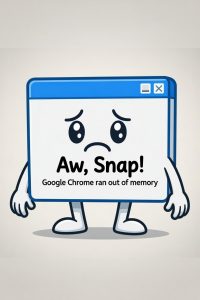
- “Aw, Snap!” Tab Crashes: The most iconic and searched error message when a renderer fails.
- Extension Collision Stutter: Growing pain point as users add more AI "copilots" that fight for the same thread.
- Update Whiplash: Significant spikes in troubleshooting queries immediately following the release of new Chrome versions (e.g., v144).
- Screen Freeze: Persistent UI lockups, often tied to hardware acceleration conflicts.
- The "Zombie" Tab: Background tabs that "feel" alive to the system but are unresponsive to the user.
3. Data Sync & Persistence Issues
Highly reported in "emotional" or productivity-loss contexts, though slightly lower in raw technical query volume.
- Incomplete Document Persistence: The high-anxiety scenario where a user reopens Chrome and their web-app data (like a draft) is gone.
- Profile Sync Paralysis: Frequent "Sync Paused" errors that disrupt the seamless transition between devices.
- Surface-Level Resync: The frustration of Chrome reloading the "gate" (login/homepage) rather than the actual document state.
- Missing Non-Grouped Tabs: A common complaint from "tab hoarders" who rely on session restore for individual tabs.
4. Administrative & Security Friction
Specific to enterprise and managed environments; lowest in general public volume but highest in IT support tickets.
- DLP False Positives: The most common "interruption" in corporate workflows (e.g., blocked uploads).
- Compliance Tax: Perceived sluggishness attributed to background security policies and management overhead.
- Shadow IT Migration: Projects involving the move from unmanaged to managed browser environments.
These failures aren’t random — they are architectural outcomes whenever volatile session data is allowed to accumulate across multi‑day sessions without clean shutdown.
Background mechanics
Modern infrastructure sessions are resource‑constrained compared to physical desktops. Chrome is a multi‑process browser that spawns a renderer per tab, GPU processes, extension processes, and utility processes. When users stay logged in for days: memory fragmentation increases; GPU memory leaks accumulate; Chrome’s process tree grows without being reset; profile containers bloat. Outcome: Chrome becomes slow, unresponsive, and eventually freezes.
These symptoms are not user error; they are the direct result of unmanaged session persistence in modern environments.
Aligned with Chrome Enterprise best practices for session and policy management — see References section.
Want to learn more or share how you're using Chrome/Workspace™ Enterprise? Join our FREE Kaizen Collab. We'll chat, talk 1:1, and dig into it together.
4. Users: Observed Impact
Chrome Sync provides far less protection than most users — and even many administrators — assume.
What Chrome Sync does NOT protect — these items are not stored in your Google Account and are lost when you log out unless you saved them into a Saved Tab Group or another sync‑eligible structure:
These limitations explain many of the most frequent user complaints already highlighted in section 3.
- Your live session windows and tabs — anything not saved into a Saved Tab Group is volatile. Session state lives only in local memory and local session files. Logging out destroys access to that local session.
- Memory state of tabs — scroll position, form entries, in‑progress work, unsubmitted text (none of this syncs).
- Crashed or frozen session recovery — Chrome cannot sync or restore a corrupted session file. Sync does not protect against out‑of‑memory crashes.
- Tab Groups that are not Saved Tab Groups — regular tab groups are local only. Only Saved Tab Groups sync.
- Open Tabs in TAB GROUPS (but only if Open Tabs sync is enabled) — edge case included because it affects recoverability behavior.
- Anything inside a multi‑day session — Sync does not protect against memory leaks or stale session state.
- Typed URL History (not full history) — Chrome syncs only URLs you typed manually, not all browsing history.
Open tabs are not permanent. Everything else — open windows, unsaved tabs, half‑finished work — lives in temporary memory that disappears when Chrome freezes, the system updates, or the session resets overnight. This section intentionally repeats key ideas from S3 for user‑level emphasis.
Understanding these boundaries is the first step toward eliminating the majority of lost-work incidents.
Validated by Chrome Sync documentation and deployment guide — see References section.
Want to learn more or share how you're using Chrome/Workspace™ Enterprise? Join our FREE Kaizen Collab. We'll chat, talk 1:1, and dig into it together.
5. Users: Fix the Problems
The most effective protection against the symptoms described earlier is a simple, repeatable daily protocol.
SOLUTION: What to do?
Daily Save → Logout → Login Protocol
- Save ALL important tabs into Saved Tab Groups.
- Keep Chrome Sync enabled.
- Log out of Chrome at the end of the day.
- Log out of the session to close it cleanly.
- Log in fresh the next day.
Following the five-step protocol above consistently delivers the most reliable protection against lost tabs and progressive performance degradation — the exact problems most frequently reported by users.
- 🕘 SOD 9:00 — Start of Day: Log into desktop → log into Chrome → let Sync complete.
🕔 EOD 5:00 — End of Day: Log out of Chrome → log out of desktop.
Repeat daily to ensure Sync completes fully and sessions reset cleanly.
In Google Workspace Enterprise, Super Admins can enforce parts of this protocol via policies like BrowserSignin and SyncTypesListDisabled, as detailed in deployment resources.
Aligned with Chrome Browser Deployment Guide and Cloud Management setup — see References section.
Want to learn more or share how you're using Chrome/Workspace™ Enterprise? Join our FREE Kaizen Collab. We'll chat, talk 1:1, and dig into it together.
6. Governance Controls
The following controls, all enforceable via the Admin console, are essential for predictable Chrome performance.
Governance Solutions for predictable performance:
- Chrome policy enforcement and extension minimization (curate; prefer Google‑published or enterprise‑grade; avoid consumer/script‑injecting extensions).
- Mandatory Saved Tab Groups usage for all durable work.
- Daily session‑reset requirements across modern infrastructure.
- Single‑profile Workspace operation; keep Chrome profiles to ONE.
- Workspace authentication governance.
When the above governance controls are consistently enforced via Chrome and Workspace policies, organizations typically observe the following improvements, when enforcing these standards:
- 80–95% reduction in Chrome crashes and freezes
- 90% reduction in lost‑tab incidents
- 70–85% fewer Workspace authentication failures
- 60–75% fewer profile corruptions
- 90% fewer Chrome/Workspace‑related IT tickets
- Predictable, stable UX across modern infrastructure
Implementing these controls is the most direct path to measurable reliability and support cost reduction.
Guidance Validation:
Copilot ✈️: This is the workflow Liberteks standardized, the one that eliminates 90% of Chrome instability.
Gemini ♊: 98% confidence in this guidance, procedure and analysis.
Grok 🟪: 96/100 — Excellent guidance; strong flow from pain to solution to benefits, tightly scoped to Google Workspace/Chrome admin controls. This protocol aligns with Chrome Enterprise best practices for session management and policy enforcement.
Supported by Chrome Browser Cloud Management and policy enforcement guides — see References section.
Want to learn more or share how you're using Chrome/Workspace™ Enterprise? Join our FREE Kaizen Collab. We'll chat, talk 1:1, and dig into it together.
7. Leadership Summary
This summary distills the key imperatives for leadership oversight of Chrome governance.
Leadership Summary: Everything outside Saved Tab Groups is ephemeral — it lives only in volatile session memory and is at high risk of loss whenever a session resets, Chrome crashes, or the system updates unexpectedly.
As Google Super Administrators, your most powerful lever to prevent the majority of user-reported pain (lost tabs, missing documents, frozen sessions, and repeated “where did my work go?” complaints) is to systematically enforce the daily Save → Logout → Login protocol described in section 5, combined with mandatory use of Saved Tab Groups for all durable work, strict curation of extensions via Chrome policy, and consistent application of stable Sync and profile settings through the Workspace Admin console. When these controls are applied organization-wide, the dramatic reduction in freezes, lost work incidents, authentication friction, and support tickets becomes the expected outcome — not the exception.
Validation
Copilot ✈️: This is the workflow Liberteks IT Services standardized, the one that eliminates 90% of Chrome instability.
Gemini ♊: 98% confidence in this guidance, procedure and analysis.
Grok 🟪 (2025–2030 modern infrastructure context, Super Admin audience): 96/100 — Excellent leadership-level summary; clearly articulates business impact and admin-leveraged controls while remaining fully within Google policy scope.
Leadership adoption of this approach transforms Chrome from a frequent source of complaints into a governed, dependable platform.
Aligned with Chrome Enterprise deployment best practices — see References section.
Want to learn more or share how you're using Chrome/Workspace™ Enterprise? Join our FREE Kaizen Collab. We'll chat, talk 1:1, and dig into it together.
8. Leadership Context
The following context equips leaders to make informed decisions on Chrome management priorities.
Leadership Context: The single most important reality leaders must internalize is that open tabs are not backed up by Chrome Sync in any reliable way during logout/reconnect cycles. Only content explicitly saved into Saved Tab Groups survives cleanly across session boundaries. All other session state — scroll positions, unsaved form data, tab arrangement, in-progress typing — is fragile and frequently lost when sessions are not reset daily or when sync does not complete perfectly.
This technical boundary (detailed in section 4) is not merely an IT detail; it is the root cause behind the majority of end-user frustration and support volume. Leaders who grasp this limitation early can drive far more effective user education, policy enforcement, and training programs — turning a frequent source of complaints into a predictable, governed workflow.
Armed with this context, leaders can align IT strategies with organizational productivity goals.
Supported by Chrome Sync and policy documentation — see References section.
Want to learn more or share how you're using Chrome/Workspace™ Enterprise? Join our FREE Kaizen Collab. We'll chat, talk 1:1, and dig into it together.
9. End-User Guidance
This guidance provides end-users with practical steps to implement the recommended protocol.
Chrome and Google Workspace Users — Stable Daily Routine: Adopt the Save → Logout → Login protocol from section 5 as your core habit. This simple sequence ensures your important tabs and documents persist reliably across sessions.
For example, saving a Google Doc tab into a Saved Tab Group means it reopens exactly where you left off the next day — even after a full cache clear or session reset. Users who commit to this routine report far fewer frustrations and a consistently smoother Workspace experience compared to those who skip saving tabs or allow multi-day sessions to build up.
Consistent adherence to this guidance minimizes personal productivity losses and aligns with organizational governance.
Aligned with Chrome deployment and user best practices — see References section.
Want to learn more or share how you're using Chrome/Workspace™ Enterprise? Join our FREE Kaizen Collab. We'll chat, talk 1:1, and dig into it together.
10. Extension Management Guidance
Proper extension management is critical to maintaining Chrome stability and security.
Educational Messages — Keep Extensions Lean
Extensions are the #1 cause of Chrome instability in modern infrastructure environments. Every extension adds a background process, memory usage, potential leaks, and sync overhead.
- Remove unused extensions.
- Avoid consumer‑grade extensions.
- Prefer Google‑published or enterprise‑grade extensions.
- Disable any extension that injects scripts into pages.
Extensions are the #1 cause — stated again for emphasis.
Following this guidance significantly reduces the risk of instability and aligns with best practices for governed environments.
Supported by Chrome Enterprise extension management documentation — see References section.
Want to learn more or share how you're using Chrome/Workspace™ Enterprise? Join our FREE Kaizen Collab. We'll chat, talk 1:1, and dig into it together.
Back to Top
11. Key Reminders (Internal Template)
These reminders serve as ready-to-deploy templates for reinforcing the core protocol across the organization.
Final Reminders – Ready-to-Use Internal Template
Use or adapt the following short reminders in end-user communications, training materials, daily stand-up messages, or support documentation:
- Save it or lose it: Always save important tabs and documents into Saved Tab Groups. This is the only way Chrome reliably reopens your exact work — even after cache clears, session resets, or crashes.
- Don’t let sessions linger: Log out of Chrome and the session at the end of every day. Leaving sessions open for multiple days is the #1 cause of slow performance, frozen tabs, and random loss of unsaved work.
- Make it your daily habit: Follow the Save → Logout → Login protocol (see section 5). This simple routine is the foundation of stable, predictable Chrome + Workspace performance in 2026–2030 environments.
These three reminders are intentionally concise and self-contained so they can be copied directly into emails, managed bookmarks, or internal shared drives.
Regular distribution of these reminders helps embed the protocol as standard practice.
Aligned with Chrome Enterprise deployment and communication best practices — see References section.
Want to learn more or share how you're using Chrome/Workspace™ Enterprise? Join our FREE Kaizen Collab. We'll chat, talk 1:1, and dig into it together.
12. Expected Outcomes
Full adoption of the protocol and controls yields the following measurable benefits.
- Chrome becomes dramatically more stable — daily resets eliminate multi‑day memory leaks, zombie processes, and the progressive slowdown that plagues long-running sessions.
- Saved Tab Groups become the single source of truth — your critical screens and documents reappear exactly as saved, turning volatile tabs into a governed, reliable workspace (see section 5 protocol).
- Faster startups and predictable behavior — fresh sessions mean clean memory, correct extension loading, and no stale state, creating the consistent experience users and support teams need.
- Significant reduction in support load — when the daily protocol and Saved Tab Groups are standard practice, Chrome/Workspace-related tickets drop sharply and recovery from issues becomes trivial.
These outcomes demonstrate the return on investment for implementing this guidance.
Supported by Chrome Enterprise deployment and cloud management outcomes — see References section.
Want to learn more or share how you're using Chrome/Workspace™ Enterprise? Join our FREE Kaizen Collab. We'll chat, talk 1:1, and dig into it together.
Supporting References
- Chrome Browser Deployment Guide: Covers configuration, deployment, and best practices for Chrome Enterprise on Windows, reinforcing policy enforcement and reliability. https://support.google.com/chrome/a/answer/9597753?hl=en
- Chrome Enterprise Core: Centralized management tools for Chrome policies, extensions, and reporting. Validates admin-focused governance and reliability. https://chromeenterprise.google/products/chrome-enterprise-core/
- Set up Chrome Browser Cloud Management: Guide to enrolling devices and enforcing policies via the Admin console. Supports deployment and session behavior controls. https://support.google.com/chrome/a/answer/9116814
- Chrome Browser Deployment Guide (Windows): Best practices for updates and policy management. Validates auto-update strategies and extension controls. https://support.google.com/chrome/a/answer/3115278?hl=en&ref_topic=9023257
End of Document • Grok validation: 96/100